Migrate from Dagster+ Serverless to Hybrid
After using a Dagster+ Serverless deployment, you may decide to use your own infrastructure to execute your code. Transitioning to a Hybrid deployment only requires a few steps, and can be done without any loss of execution history or metadata, allowing you to maintain continuity and control over your operations.
Transitioning from Serverless to Hybrid requires some downtime, as your Dagster+ deployment will temporarily not have an agent to execute user code.
Prerequisites
To follow the steps in this guide, you'll need Organization Admin permissions in your Dagster+ account.
Step 1: Deactivate your Serverless agent
- In the Dagster+ UI, navigate to the Deployment > Agents page.
- On the right side of the page, click the dropdown arrow and select Switch to Hybrid.
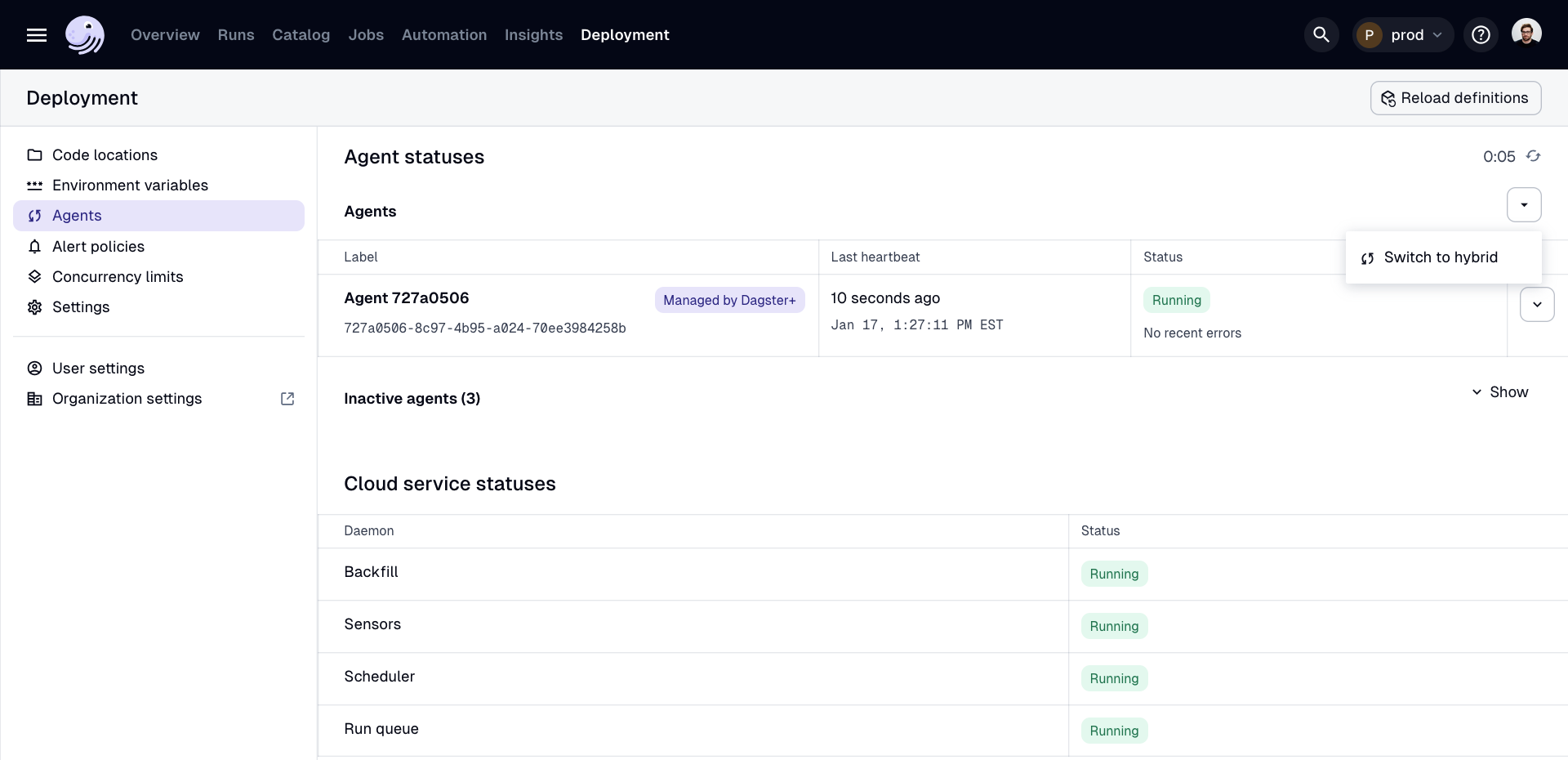
It may take a few minutes for the agent to deactivate and be removed from the list of agents.
Step 2: Create a Hybrid agent
Next, you'll need to create a Hybrid agent to execute your code. Follow the setup instructions for the agent of your choice:
- Amazon Web Services (AWS), which launches user code as Amazon Elastic Container Service (ECS) tasks.
- Docker, which launches user code in Docker containers on your machine.
- Microsoft Azure, which launches user code to Azure infrastructure.
- Kubernetes, which launches user code on a Kubernetes cluster.
- Local, which launches user code in operating system subprocesses on your machine.
Step 3: Update your code locations' configuration in build.yaml
See the documentation for the agent of your choice:
If you have an older Dagster+ deployment, you may have a dagster_cloud.yaml file instead of a build.yaml file.
Step 4: Confirm successful setup
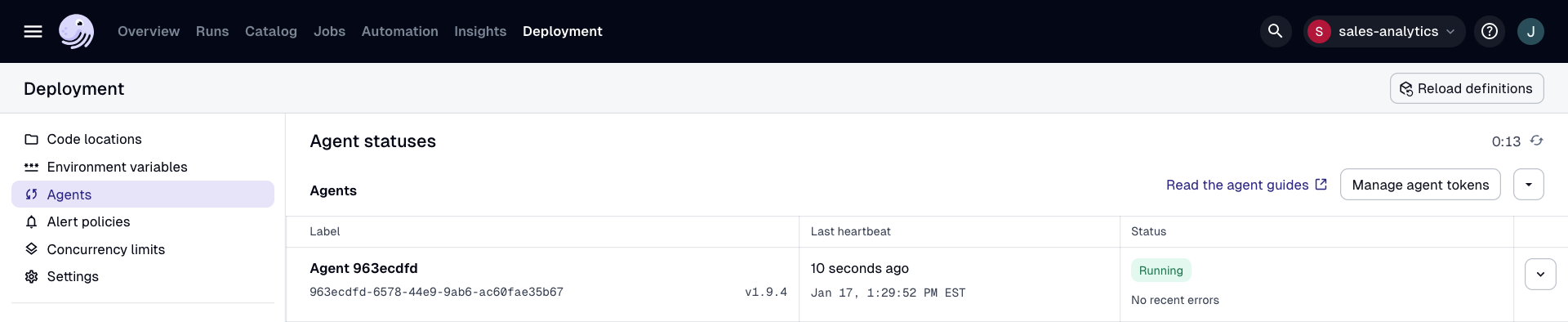
Once you've set up a Hybrid agent, navigate to the Deployment > Agents page in the UI. The new agent should display in the list with a RUNNING status:
Step 5: Update your build process
Update your build process to publish a new container image and configuration for each code location. To use Dagster's CI/CD process, see Configuring CI/CD in Dagster+.
Step 6: Replace Serverless-only features with their Hybrid equivalents
| Serverless-only feature | Hybrid equivalent |
|---|---|
| Disabling PEX-based deploys and customizing the Docker image with lifecycle hooks | To customize a code location's runtime environment, you can customize the code location's Dockerfile to build its image. |
7. Migrate asset data to your own storage (optional)
In Serverless deployments, asset values are stored by default using Dagster-managed S3 storage. After switching to Hybrid, you may want to migrate that data to your own S3 bucket or other storage backend so that your assets remain loadable under the new IO manager configuration. The alternative is to re-materialize all assets against your new storage backend, but this may be time-consuming for large assets or asset graphs.
You can use migrate_io_storage to copy all materialized asset data from the Serverless-managed IO manager to your new IO manager without re-materializing any assets.
The example below shows a job that migrates asset data from the default IO manager (which in Serverless is Dagster-managed S3 storage) to a new S3 bucket that you control:
# Destination IO manager: the IO manager for your new Hybrid deployment.
destination_io_manager = S3PickleIOManager(
    s3_resource=S3Resource(region_name="us-west-2"),
    s3_bucket="my-hybrid-bucket",
    s3_prefix="dagster/storage",
)


@dg.asset
def my_asset(): ...


@dg.asset(partitions_def=dg.DailyPartitionsDefinition(start_date="2024-01-01"))
def my_daily_asset(): ...


@dg.op
def run_migration(context: dg.OpExecutionContext):
    result = dg.migrate_io_storage(
        context=context,
        destination_io_manager=destination_io_manager,
    )
    total_migrated = sum(s.size for s in result.migrated)
    total_failed = sum(s.size for s in result.failed)
    context.log.info(f"Migrated {total_migrated} assets, {total_failed} failed")


@dg.job
def migration_job():
    run_migration()


defs = dg.Definitions(assets=[my_asset, my_daily_asset], jobs=[migration_job])
- The
contextargument provides both the set of assets to migrate and the source IO manager for each asset— they are resolved from the code location that the currently executing op belongs to. Alternatively, you can pass adefinitionsargument (along with aninstance) instead ofcontextto provide the assets and IO managers explicitly. In a standard serverless deployment, all assets will by default use the same Dagster-managed S3 IO manager, but in other deployments there may be multiple IO managers in use. Thedestination_io_manageris the same for all assets and should be an instance of the new IO manager you want to write data to. - Progress is logged to the Dagster event log when
migrate_io_storageis called inside an op. - For large partitioned assets, use
batch_partitions=Trueto migrate partitions in batches usingPartitionKeyRangecontexts instead of one at a time. - Use the
transformparameter if the in-memory Python type differs between your source and destination IO managers. For example, if your source IO manager deserializes data to Pandas DataFrames but your destination IO manager serializes PyArrow tables, you could provide a transform function that converts the DataFrame to a PyArrow table in memory before writing it to the new storage backend.
Next steps
- Learn about the configuration options for dagster.yaml